Lab 2.1 – Kibana Interface & Search
Kibana is the interface to elasticsearch and makes visualisationa and dashboards available. It allows REST API calls for development of additional Cutomer interfaces.
This lab will look at the look and feel of the Kibana interface, and some key navigation hints and tips.
Task 1 - Kibana Interface Explantion
This task will focus on explation of the Kibana interface and navigating different aspects of the interface.
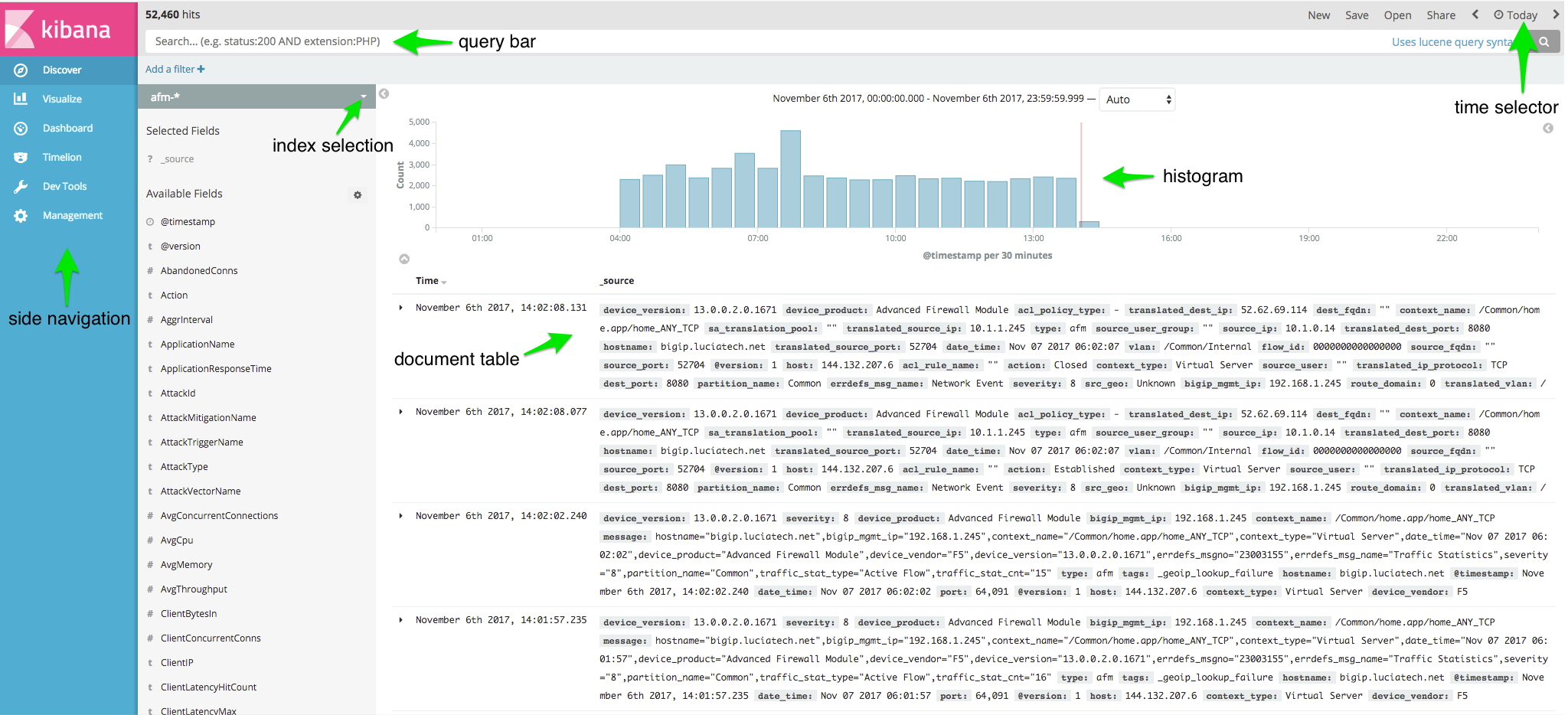
Try changing the following:
- Time Range
- Index
- Dashboards
Note
Take your time to explore each of the interface elements.
Task 2 - Searching Kibana
In this task we will use two example search types to see how Kibana uses elasticsearch. These example searches will be the following:
- Field Search
- Query Bar
Field Search Field searching is very useful in Kibana and can be used to see types of data and values that elasticsearch is indexing. To conduct field searching conduct the following:
- Click on a field
- Examine the expanded field, note the values that elasticsearch is indexing
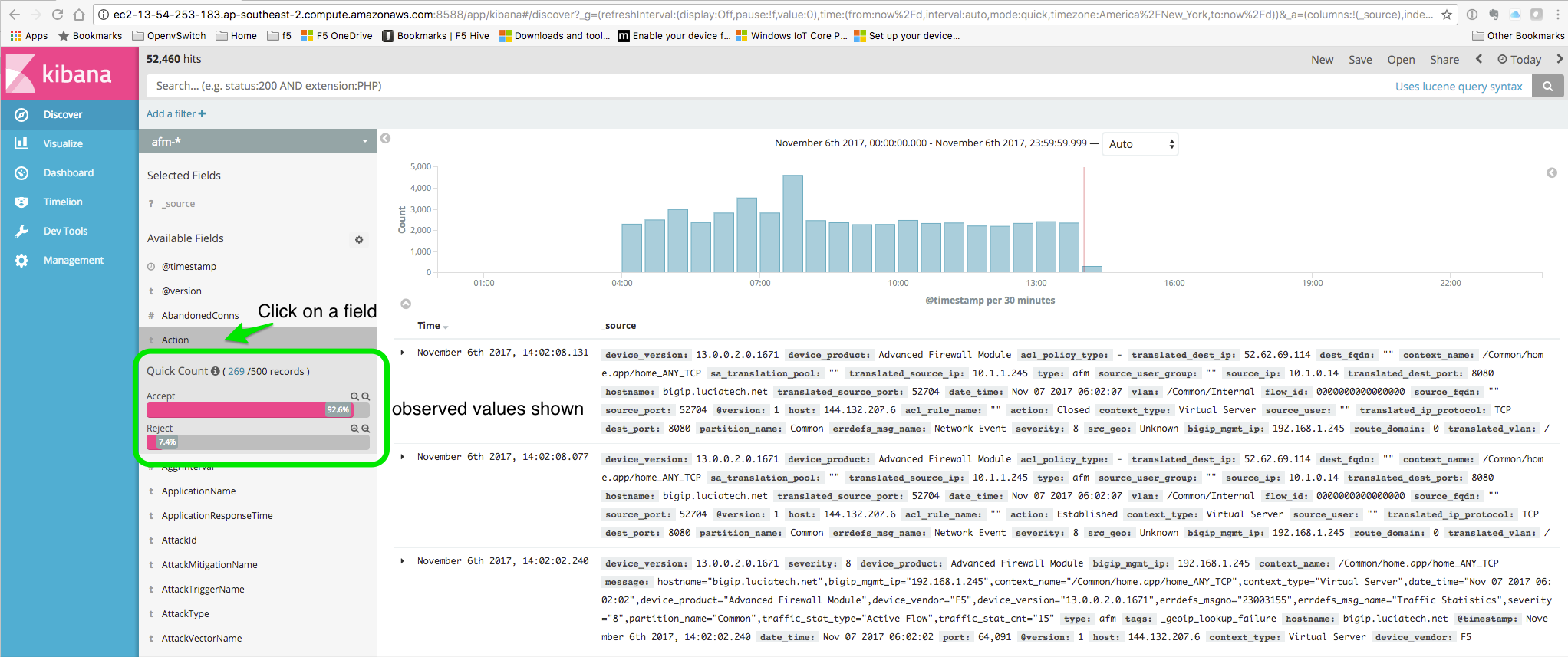
- Click the add button.
- Notice the field is in the Selected Field section.
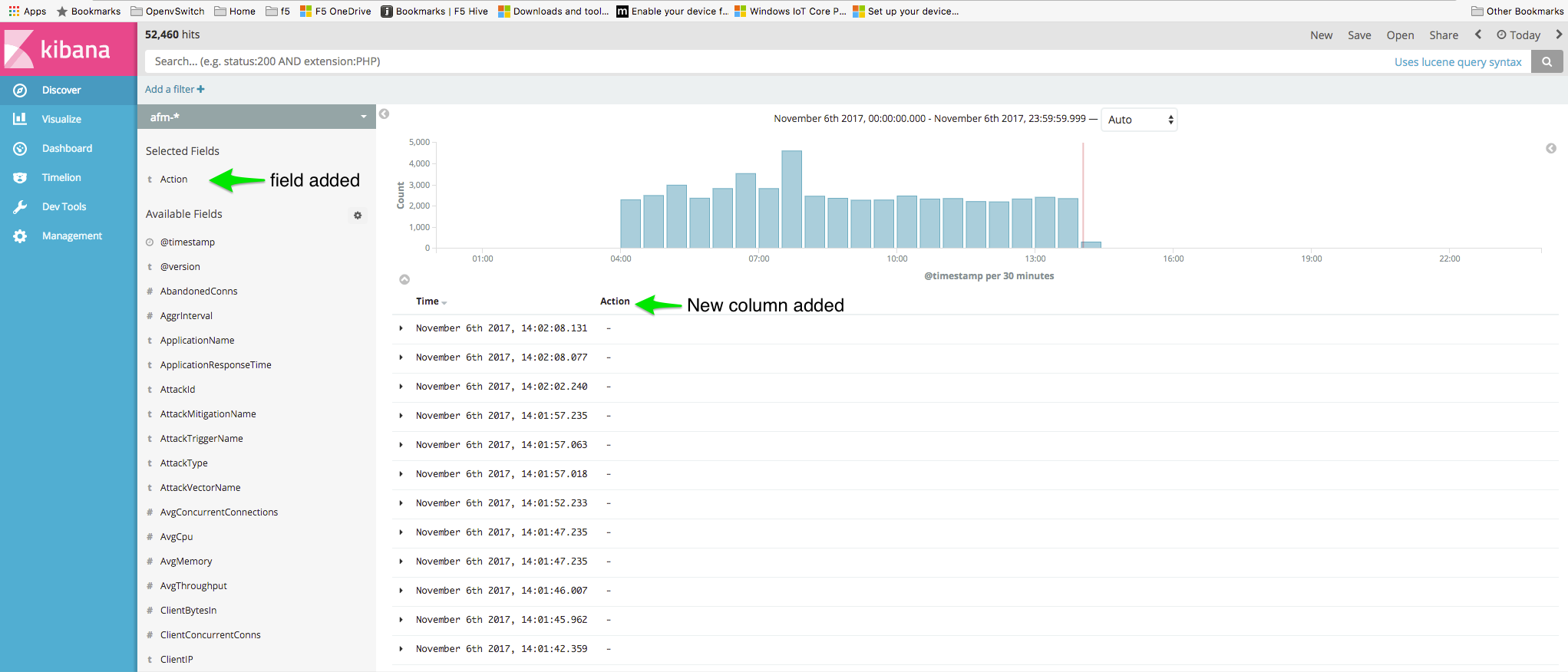
Note
Take time to explore multiple field add to Selected field and build up a set of interesting columns.
Query Bar This type if searching is searching all data fields not only Selected fields as we did previously.
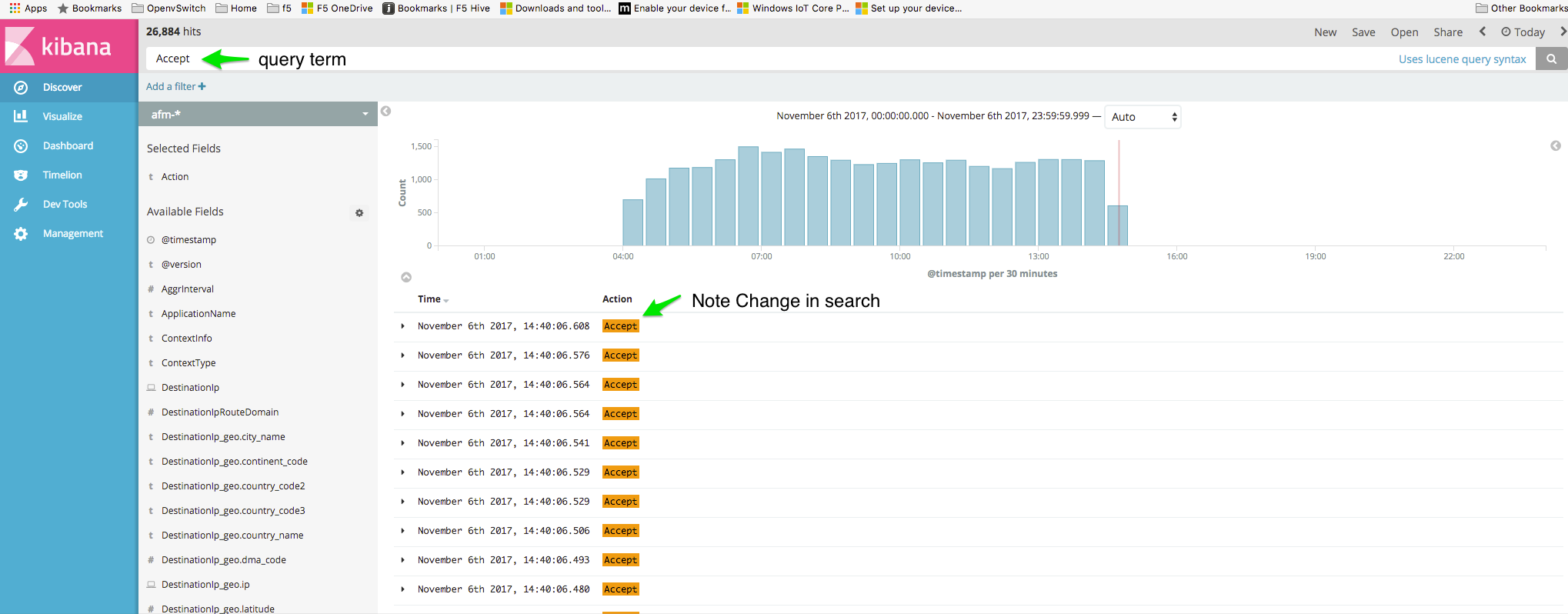
Note
Take time to explore multiple field add to Selected field and use Query terms to see the results.